Example 7 - Using the AddTaskUsingDuration Call
Summary:
This program starts Milestones Professional, creates a new file, places several symbols on the schedule using the AddTaskUsingDuration call, prints, and then closes the schedule. The schedule will also print.
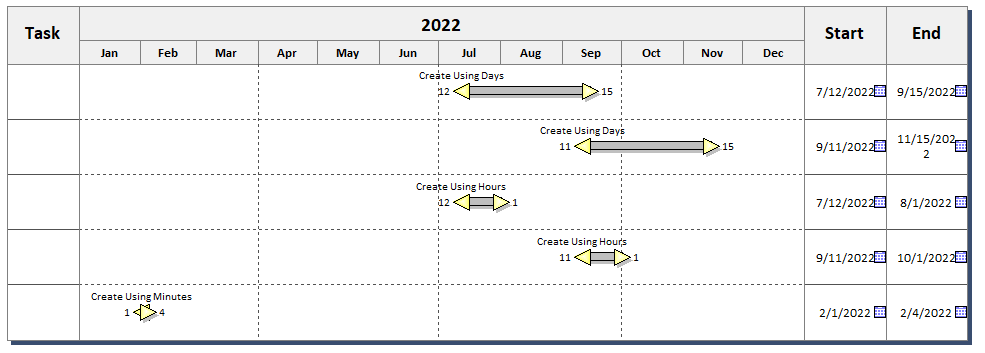
|
Public Sub Example7() Set objMilestones = CreateObject("Milestones") With objMilestones .Activate .AddTaskUsingDuration 1, "7/12/2022", 2, 5, 2, 2, 65, "Day", 12, 0, "Create Using Days" .AddTaskUsingDuration 2, "9/11/2022", 2, 5, 2, 2, 65, "Day", 12, 0, "Create Using Days" .AddTaskUsingDuration 3, "7/12/2022", 2, 5, 2, 2, 480, "Hour", 12, 0, "Create Using Hours" .AddTaskUsingDuration 4, "9/11/2022", 2, 5, 2, 2, 480, "Hour", 12, 0, "Create Using Hours" .AddTaskUsingDuration 5, "2/1/2022", 2, 5, 2, 2, 4800, "Minute", 12, 0, "Create Using Minutes" .Refresh .Close
End With Exit Sub End Sub |
Related Topics